
TABLE OF CONTENTS
- What is Google Sheets in Workflows?
- Key Benefits of Google Sheets Actions & Triggers
- Connecting Your Google Sheets Account
- Available Triggers (Google Sheets → Workflows)
- Available Actions (Workflows → Google Sheets)
- How To Set Up Google Sheets Actions & Triggers
- Common Use Cases
- Frequently Asked Questions
- Need Help?
Connect Google Sheets to your Link+ workflows without third-party tools. Start a workflow when a spreadsheet, worksheet or row is added, or when a row changes, and add, find, update, clear, format or remove rows as workflow steps. This guide covers connecting your Google account, every Google Sheets trigger and action, setup and testing, limits and troubleshooting.
What is Google Sheets in Workflows?
Google Sheets triggers watch a Google Drive, spreadsheet or tab and start a workflow when they find something new or changed. Google Sheets actions let a workflow write to, read from and tidy up a spreadsheet.
Recent additions: four triggers (New spreadsheet, New spreadsheet row, Updated spreadsheet row and New worksheet) and two actions (Format spreadsheet row(s) and Remove spreadsheet row(s)). Every Google Sheets action now appears as its own step in the action list, and the two former Delete actions are now named Clear. They work as before.
Key Benefits of Google Sheets Actions & Triggers
- Start workflows from your sheets: New rows, changed rows, new tabs and new spreadsheets can start a workflow on their own.
- Use sheet data in any step: Column headers become custom values you can map into emails, contacts, opportunities and conditions.
- Keep sheets up to date: Add, find and update rows by row number or by matching a column value.
- Tidy rows automatically: Clear, highlight or remove rows as part of a workflow.
- Find the right step fast: Each Google Sheets operation is its own action, so you can search for it by name.
Connecting Your Google Sheets Account
- Go to Automation → Workflows and open or create a workflow.
- Add a Google Sheets trigger or action.
- If no Google account is connected yet, select Connect your account and sign in with Google.
- Under Choose an Account, select the Google account that can open your spreadsheet.
Tip: You can connect more than one Google account and choose the account in each step. Triggers need at least Viewer access to the spreadsheet, and actions that change a sheet need edit access. Spreadsheets shared with you are listed under My Drive.
Available Triggers (Google Sheets → Workflows)
The four triggers are in the Google sheets group of the trigger list and are marked Beta and Premium. They check Google Sheets on a schedule (polling), so they are not instant.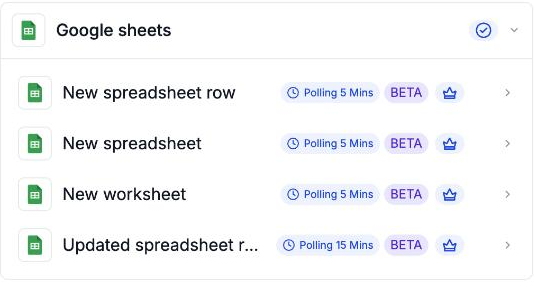
| Trigger | What it does | What you select | Checks for changes |
|---|---|---|---|
| New spreadsheet | Starts a workflow when a new Google Sheets spreadsheet is created in the selected Drive. | Drive | Every 5 minutes |
| New spreadsheet row | Starts a workflow when a new row is added after the last row of the selected sheet (tab). | Drive, Spreadsheet, Sheet (Tab) | Every 5 minutes, up to 500 new rows per check |
| Updated spreadsheet row | Starts a workflow when a cell in an existing row changes. New rows don't trigger it. | Drive, Spreadsheet, Sheet (Tab), and an optional Trigger Column | Every 15 minutes |
| New worksheet | Starts a workflow when a new worksheet (tab) is added to the selected spreadsheet. | Drive, Spreadsheet | Every 5 minutes |
How the triggers work
- Starting point: The first check after you publish records what is already there. Existing spreadsheets, tabs and rows don't start the workflow, and anything added before that first check counts as existing.
- Published workflows only: Draft workflows don't fire.
- Switching accounts: If you change the Google account on a published trigger, it starts fresh from the next check and doesn't replay earlier changes.
- Headers in row 1: Both row triggers read column names from row 1. Keep each header name unique.
- Once per item: Each new spreadsheet, tab or row starts the workflow once. For Updated spreadsheet row, a row with several changed cells starts it once per check.
New spreadsheet row: what to know
Important: Rows are tracked by position. Inserting rows in the middle of the sheet makes the last rows fire again, and deleting rows makes the next new rows get skipped (one for each row inserted or deleted). Add new records at the bottom of the tab.
- Up to 500 new rows are picked up per check. A larger batch is worked through 500 rows every 5 minutes, in order.
- Blank rows, and rows whose cells only show empty text from formulas, don't fire. A blank row that is filled in later doesn't fire either.
- Editing or sorting existing rows doesn't fire this trigger. Use Updated spreadsheet row for changes.
- Only the selected tab is watched. Rows added to other tabs don't fire.
Updated spreadsheet row: what to know
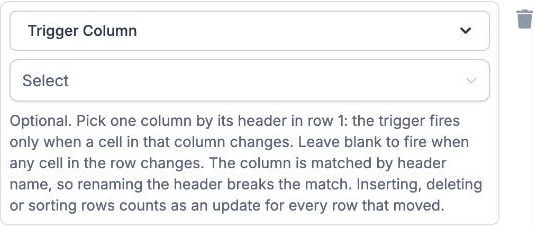
- Trigger Column (optional): Under Add filters, pick one column by its header in row 1. The workflow then starts only when a cell in that column changes. Leave it blank to start on a change to any cell in the row.
- The Trigger Column is matched by header name. Renaming that header stops the trigger until you restore the name or pick the column again.
- Inserting, deleting or sorting rows counts as an update for every row that moved.
- Formulas that recalculate on every edit, such as NOW(), TODAY() and RAND(), make their rows fire whenever another cell is edited.
- Clearing a cell counts as a change.
- The trigger works on tabs up to 10 MB.
- New rows don't fire this trigger. Use New spreadsheet row for those.
Data passed to later steps
Under Map your trigger, select Find new records and pick a record as the mapping reference. The trigger's fields then appear in the custom value picker of later steps.
- New spreadsheet row and Updated spreadsheet row: one value per column header, plus the row number, the whole row (Row Values and Row Data), and the spreadsheet and sheet titles.
- Updated spreadsheet row also passes: each column's previous value (Previous <header>) and Changed Columns, a plain-text list such as "Status, Notes". With a Trigger Column set, Changed Columns lists only that column. The previous values appear in the picker after you test the trigger.
- New spreadsheet: the spreadsheet's title, ID and link, when it was created, and its owner.
- New worksheet: the tab's title, ID and position, and the spreadsheet's title and ID.
Note: A column without a header only appears inside Row Values. If a header matches a built-in field name such as rowNumber, its value appears only in Row Data and Row Values.
Available Actions (Workflows → Google Sheets)
Search the action list for "Google Sheets" or for the action's name. All Google Sheets actions are Premium.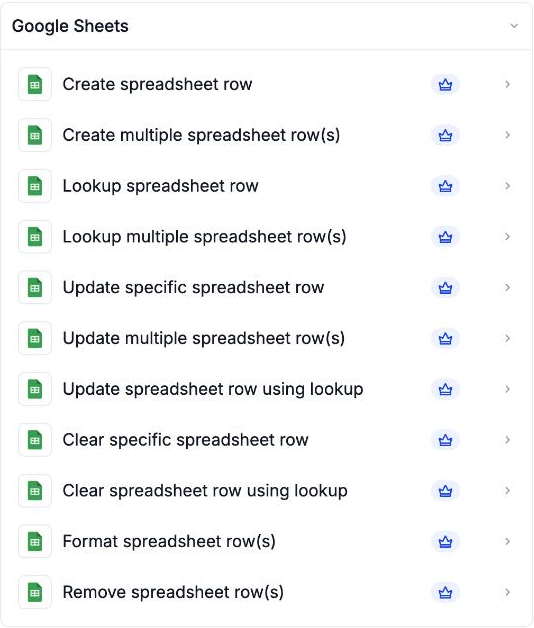
Add rows
| Action | What it does |
|---|---|
| Create spreadsheet row | Append a new row to the bottom of your spreadsheet. |
| Create multiple spreadsheet row(s) | Append multiple new rows to your spreadsheet at once. |
Find rows
| Action | What it does |
|---|---|
| Lookup spreadsheet row | Find a single row by matching a column value. |
| Lookup multiple spreadsheet row(s) | Find multiple rows by matching a column value. |
Update rows
| Action | What it does |
|---|---|
| Update specific spreadsheet row | Update a row by its row number. |
| Update multiple spreadsheet row(s) | Update multiple rows starting from a specific row number. |
| Update spreadsheet row using lookup | Find a row by column value and update it. |
Clear, format and remove rows
| Action | What it does |
|---|---|
| Clear specific spreadsheet row | Clear a specific row by its row number. |
| Clear spreadsheet row using lookup | Find a row by column value and clear it. |
| Format spreadsheet row(s) | Apply background, text color, font size and text styles to a row. |
| Remove spreadsheet row(s) | Permanently remove a row by its row number. |
Fields every action shares
- Choose an Account: the connected Google account to use.
- Action Name: the step's name on the canvas.
- Action: set by the action you picked. To use a different operation, add that action instead.
- Drive: My Drive, or a shared drive, where the spreadsheet is stored.
- Spreadsheet and Worksheet: the file and tab to work on. The worksheet's name is used to reference it and can't be changed after it's selected.
- Refresh headers: on actions that work with columns, reloads the column list after you change row 1.
Create spreadsheet row
Pick the Starting Column and Ending Column of the range you want to fill. A field appears for each column in that range, where you enter a value or insert a custom value. The new row is added below the last row of the tab.
Lookup options
- Search: From top of the sheet (the default) or From bottom of the sheet.
- Column and Value: the column to search and the value to match. Use + Column to add another column and value.
- Row Count (Lookup multiple spreadsheet row(s) only): how many matching rows to return. The default is 10.
- Case sensitive lookup: match upper and lower case exactly.
- Create new spreadsheet row if it doesn't exist yet?: adds a row when no match is found.
Updating or clearing a row found by lookup
Update spreadsheet row using lookup and Clear spreadsheet row using lookup work on the row an earlier lookup step found. Add the lookup step first, then choose it under Select Lookup Action.
Row numbers in Format and Remove
Format spreadsheet row(s) and Remove spreadsheet row(s) accept a single row (5), a list (2, 4, 6), a range (2-6) or a mix (2, 4-6). You can also insert a custom value. Row 1 is the header row and is always skipped.
Format spreadsheet row(s) options
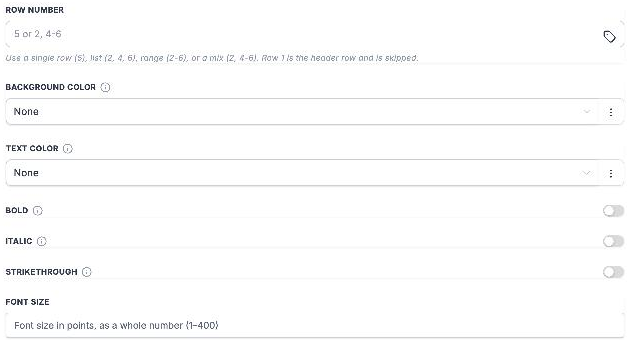
- Background Color and Text Color: pick a color, or enter a hex value or a custom value.
- Bold, Italic and Strikethrough: when turned on, the style is applied. When turned off, the row's existing style is left as it is.
- Font Size: a whole number from 1 to 400.
Set at least one formatting option, or the step can't be saved.
Clear or remove?
| Clear | Remove | |
|---|---|---|
| What happens | Empties the row's cells. The row stays, and nothing moves. | Deletes the row. The rows below move up. |
| Which rows | One row, by row number or by lookup | One or more rows, by row number |
Important: Removing rows is permanent and changes the row number of every row below. Later steps that use row numbers may then point at different rows, and a New spreadsheet row trigger on the same tab skips the next new rows, one for each row removed.
How To Set Up Google Sheets Actions & Triggers
- Go to Automation → Workflows and open or create a workflow.
- Select Add Trigger, search for "Google Sheets" and pick a trigger.
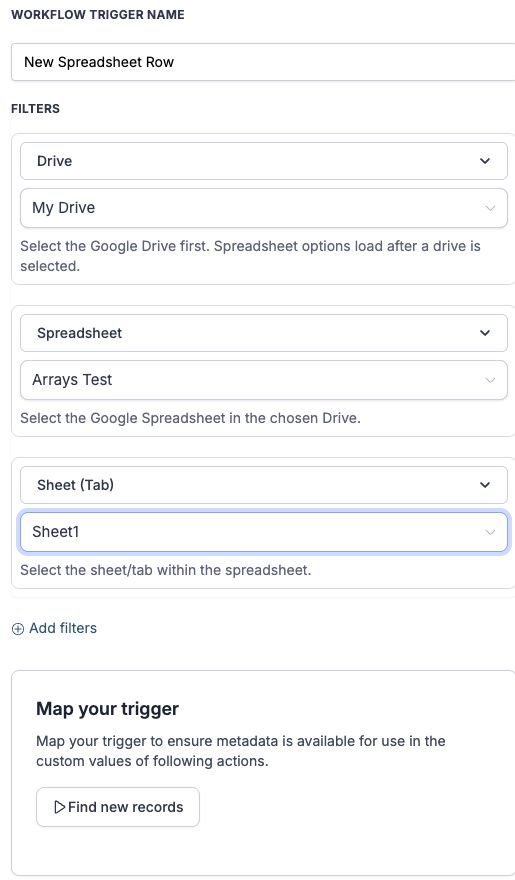
- Choose your Google account, then select the Drive (My Drive is selected by default), the Spreadsheet and, for the row triggers, the Sheet (Tab). For Updated spreadsheet row, use Add filters to add a Trigger Column if you need one.
- Under Map your trigger, select Find new records and pick a record as the mapping reference. Then select Save trigger.
- Add your actions. For a Google Sheets action, choose the account, Drive, Spreadsheet and Worksheet, fill in the fields with values or custom values, and select Save action.
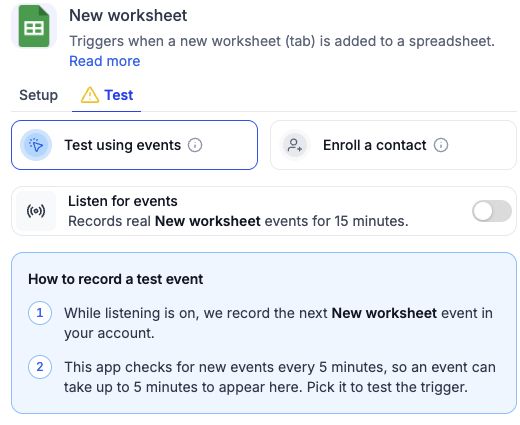
- Test the trigger: open its Test tab, select Test using events and turn on Listen for events, which listens for 15 minutes. Make the change in Google Sheets and wait for the next check (up to 5 minutes, or up to 15 minutes for Updated spreadsheet row), then pick the recorded event. If listening ends before the event arrives, turn it on again.
- Save and publish the workflow.
Common Use Cases
Use Case 1: Turn new sheet rows into contacts
Goal: Add every lead your team logs in a sheet to your contacts and start follow-up.
Workflow Setup:
- Trigger: New spreadsheet row on the "Leads" tab.
- Action: Find contact, using the row's Email column.
- Contact Not Found: Create contact with the row's name, email and phone columns.
- Action: Add contact tag "sheet lead", then Send email.
Example: A rep adds a row at the bottom of Leads → the workflow starts within 5 minutes → the contact is found or created → tagged "sheet lead" → welcome email sent.
Use Case 2: Act when a status changes
Goal: Tell the team when a project is marked Closed in a tracking sheet.
Workflow Setup:
- Trigger: Updated spreadsheet row, with Trigger Column set to Status.
- Filter: If/Else, Status is "Closed".
- Action: Send email to the team, using the row's Project and Previous Status values.
Example: Status for "Website refresh" changes from "In progress" to "Closed" → the workflow starts within 15 minutes → If/Else matches Closed → the team gets "Website refresh moved from In progress to Closed".
Use Case 3: Keep a customer sheet in sync
Goal: Mark a customer's row in a shared sheet when the contact becomes a customer.
Workflow Setup:
- Trigger: Contact tag, when the tag "customer" is added.
- Action: Lookup spreadsheet row, Column Email, Value set to the contact's email.
- Action: Update spreadsheet row using lookup, with the lookup step selected, setting Status to "Customer".
Example: The "customer" tag is added → the lookup finds the row with that email → Status is set to Customer.
Tip: To also add people who aren't in the sheet yet, turn on Create new spreadsheet row if it doesn't exist yet? in the lookup step.
Frequently Asked Questions
Q: Do Google Sheets triggers and actions cost extra?
A: They are marked Premium in the workflow builder, and each run counts as a premium execution. Check your account's premium workflow usage and billing settings before you publish.
Q: Are the triggers instant?
A: No. New spreadsheet, New spreadsheet row and New worksheet check every 5 minutes. Updated spreadsheet row checks every 15 minutes.
Q: Why isn't my trigger firing?
A: Check that the workflow is published, that the change happened after the first check following publishing, and that the Google account can open the spreadsheet. Confirm the selected Drive, Spreadsheet and Sheet (Tab), and that row 1 holds the headers. For New spreadsheet row, add rows at the bottom of the tab. For Updated spreadsheet row, check that the Trigger Column's header wasn't renamed and that the tab is under 10 MB.
Q: Why did some rows fire twice, or not at all?
A: New spreadsheet row tracks rows by position. Inserting rows mid-sheet makes the last rows fire again, and deleting rows (including with Remove spreadsheet row(s)) skips the next new rows. Add records at the bottom and avoid inserting or deleting rows in a watched tab.
Q: Why did Updated spreadsheet row fire for rows nobody edited?
A: Inserting, deleting or sorting rows counts as an update for every row that moved. Rows with formulas such as NOW(), TODAY() or RAND() also fire whenever another cell is edited.
Q: How do I connect a sheet row to a contact?
A: Google Sheets triggers don't come with a contact. Add a Find contact step that uses a column such as Email or Phone, and a Create contact step for when the contact isn't found.
Q: What happened to the Delete spreadsheet row actions?
A: They are now named Clear specific spreadsheet row and Clear spreadsheet row using lookup, and they still only empty the row's cells. To delete rows and move the rows below up, use Remove spreadsheet row(s).
Q: What happens to my existing Google Sheets steps?
A: They keep working as before. You don't need to change them.
Q: Why can't I find my spreadsheet or tab?
A: Select the Drive first, then search the Spreadsheet list or use Refresh options for files or tabs created recently. Check that the Google account can open the file. Spreadsheets shared with you are under My Drive.
Q: Why doesn't my If/Else condition on Row Values match?
A: Row Values holds the whole row. Use the Contains or Is any of operators rather than Is.
Need Help?
Open the workflow's Execution logs to see what each step received and returned. Check that the Google account is still connected and can open the spreadsheet, and run Find new records again after you change headers. If you still need help, contact support with the workflow name, the trigger or action name, the spreadsheet and tab name, and the time of the event.