
This guide explains how the platform's automated domain warm-up works, how to enable it on your dedicated sending domain, how to read the warm-up reports, and how to pause or stop warm-up.
Domain warm-up is the process of gradually increasing your daily email volume to build a trusted sender reputation with inbox providers like Gmail, Outlook, and Yahoo.
TABLE OF CONTENTS
- Why Domain Warm-Up Matters
- How Automated Email Warm-Up Works
- Who Can Use It and When Warm-Up Starts
- How to Enable Domain Warm-Up
- Domain Warm-Up Report
- Understanding Your Warm-Up Performance
- How to Pause or Stop Domain Warm-Up
- Frequently Asked Questions
Why Domain Warm-Up Matters
Inbox providers are cautious with domains that suddenly start sending large volumes. Without proper warm-up, new domains are more likely to:
- Be flagged as spam
- Experience high bounce or complaint rates
- Face email delivery blocks or delays
The platform automates this entire process so you can build trust with inbox providers and maximize deliverability without manually managing send volumes.
2How Automated Email Warm-Up Works
Email Domain Warm-Up is fully automated. Instead of manually sending emails and increasing volume yourself, the platform uses dedicated warm-up mailboxes on your domain that:
Gradually increase daily sending volume — ramping up toward your selected daily goal.Simulate natural conversations — emails look and behave like real correspondence.Send replies in threads — building authentic back-and-forth engagement.Mark emails as important — sending positive signals to inbox providers.Remove emails from Spam — rescuing warm-up emails that land in spam ("Saved from spam").Maintain ongoing engagement — keeping your reputation healthy over time.Together, these signals build a strong sender reputation with providers like Gmail, Outlook, Yahoo, and others — improving inbox placement over time.
3Who Can Use It and When Warm-Up Starts
AvailabilityAgencies and sub-accounts with dedicated domainsEmail warm-up is available for both agency and sub-account dedicated sending domains.
Existing DomainsWarm-up must be enabled manuallyWhen you enable warm-up on an existing domain, the system automatically analyzes past email activity and Google Postmaster reputation data (if integrated) to plan the warm-up.
PrerequisiteThe domain must be verified and its SSL certificate must be issued before you can start warm-up. Unverified domains show "Verify the domain and wait for its SSL certificate before starting warm-up" instead of the Start warm-up button.
Setup GuideStart warm-up in a few clicksPick a daily goal and the platform handles mailboxes, volume ramp-up, and engagement for you.4How to Enable Domain Warm-Up
Step 1Open your Dedicated Domain settingsGo to Agency Settings or Sub-Account Settings → Email Services → SMTP Service, then open the Dedicated Domain and IP tab.
Step 2Click Start warm-up on your domainFind your domain card and, under Domain Warm-Up, click Start warm-up. A "Warm up <your domain>" popup opens.
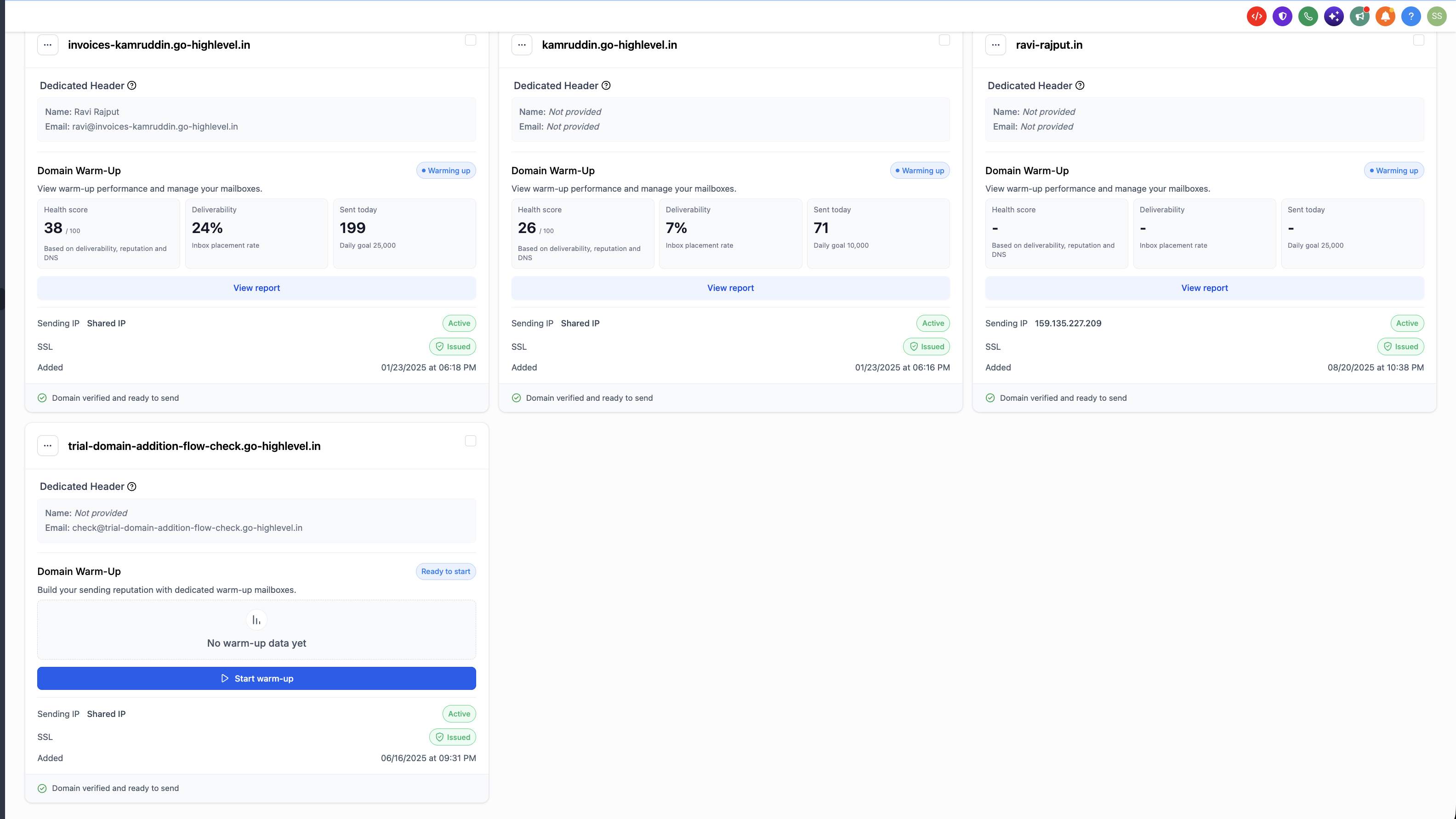 Step 3Select your daily goal
Under Daily goal, click Change and pick a volume from the Daily warm-up limit dropdown (for example, 10,000 or 25,000 emails a day), then click Done. Sending increases gradually up to this amount — it is not a guaranteed daily volume.
Note: The daily warm-up goal is the maximum target volume for automated warm-up emails, not a limit on your regular campaign emails. Warm-up volume increases gradually toward your selected goal and is not guaranteed to reach that amount every day.
You can continue sending campaigns and workflow emails while warm-up runs, subject to applicable sending limits.
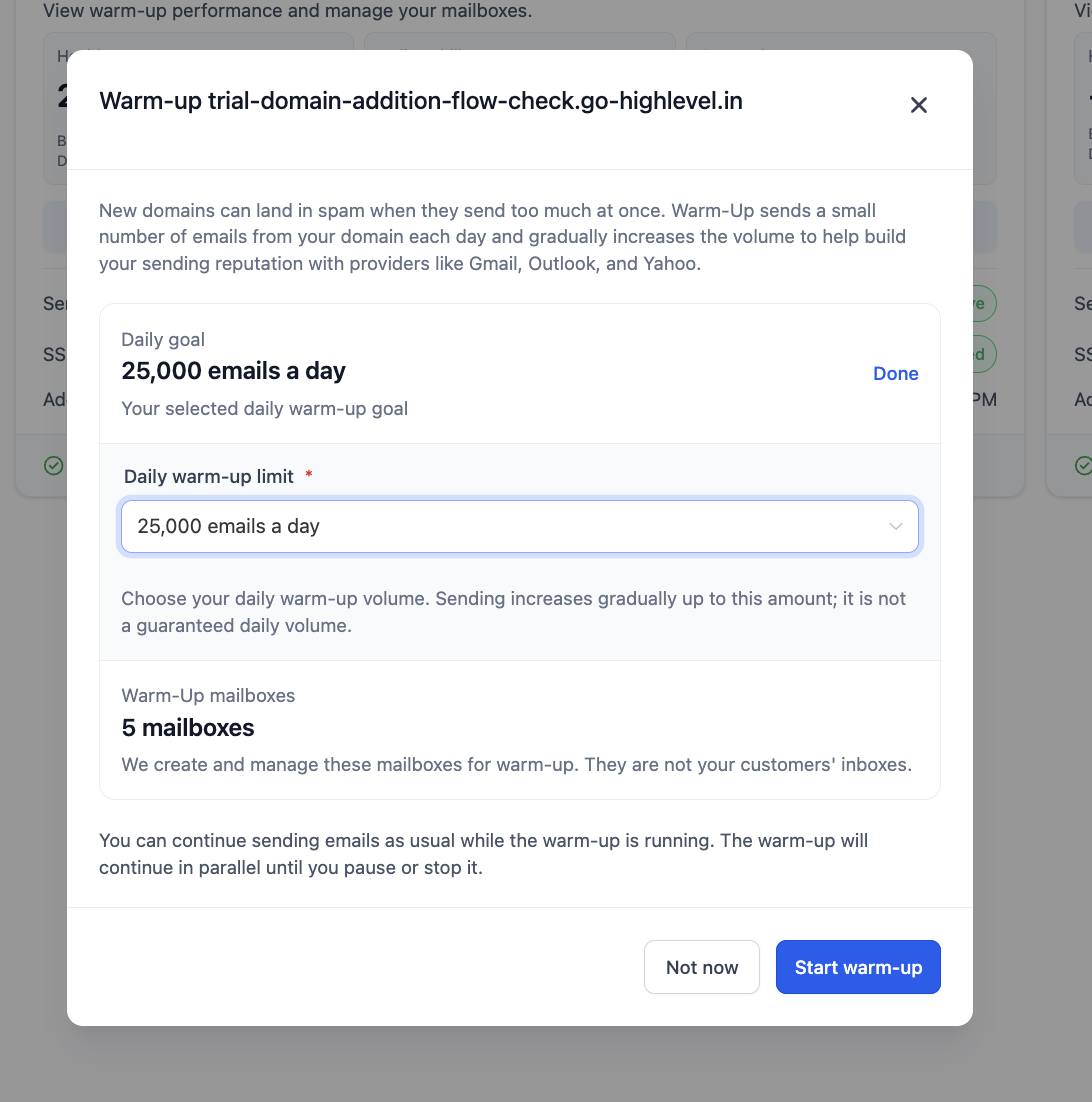 Step 4Review your warm-up mailboxes
Based on the volume you select, the platform creates the required number of warm-up mailboxes (for example, a 25,000/day goal uses 5 mailboxes, each with a 5,000/day sending cap). We create and manage these mailboxes for warm-up — they are not your customers' inboxes.
Step 5Click Start warm-upClick Start warm-up to confirm. The domain card's Domain Warm-Up badge changes to Warming up.
Keep Sending as UsualYou can continue sending emails as usual while warm-up is running. Warm-up continues in parallel until you pause or stop it.
Heads upIf the domain is already enrolled, you'll see a "Warm-Up is already set up" message. Click Done and open its report from the domain card instead.
5Domain Warm-Up Report
At a GlanceDomain card summaryOnce warm-up is enabled, each domain card shows warm-up performance at a glance: Health score (0–100), Deliverability (inbox placement rate), and Sent today against your daily goal.
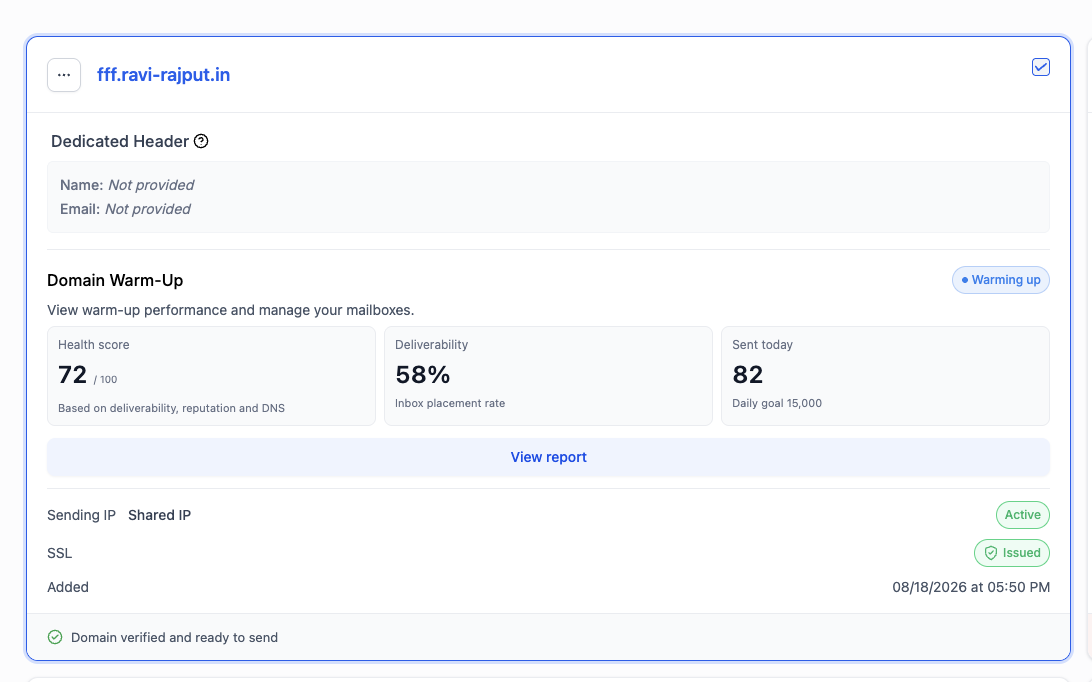 Detailed ReportClick View report
Click View report on the domain card to open the full Domain warm-up page.
| Report Item | What It Shows |
|---|---|
| Domain health score | Overall health of this domain on a 0–100 scale. |
| Deliverability | Inbox placement rate of warm-up emails. |
| Sent today | Warm-up emails sent today, with progress toward your daily goal. |
| DNS records | Status of SPF, DKIM, DMARC, and MX records (green = configured, red = missing or invalid). |
| Warm-Up performance | "Landed in inbox" chart comparing emails delivered to Inbox vs Saved from spam, filterable by time period (e.g. Week). |
| Warm-Up mailboxes | Each warm-up mailbox with its from name, status, deliverability, and sent today vs daily cap. |
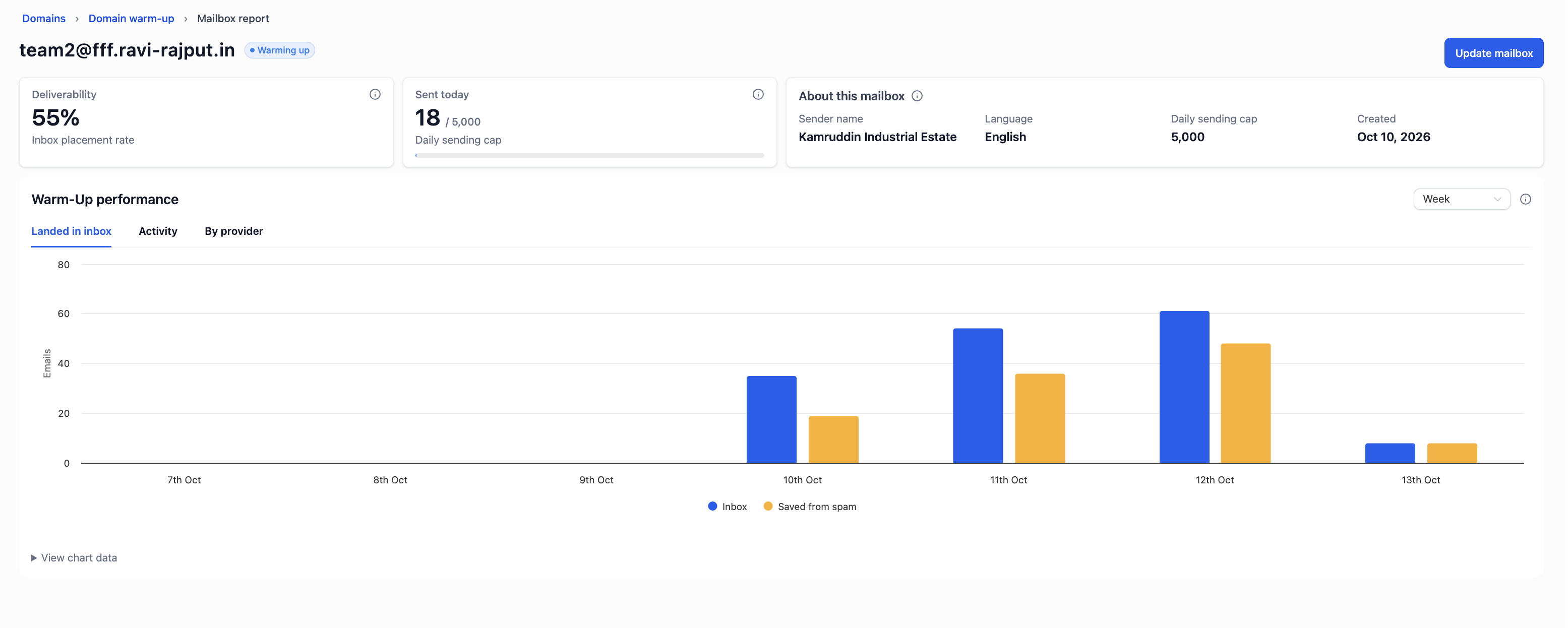
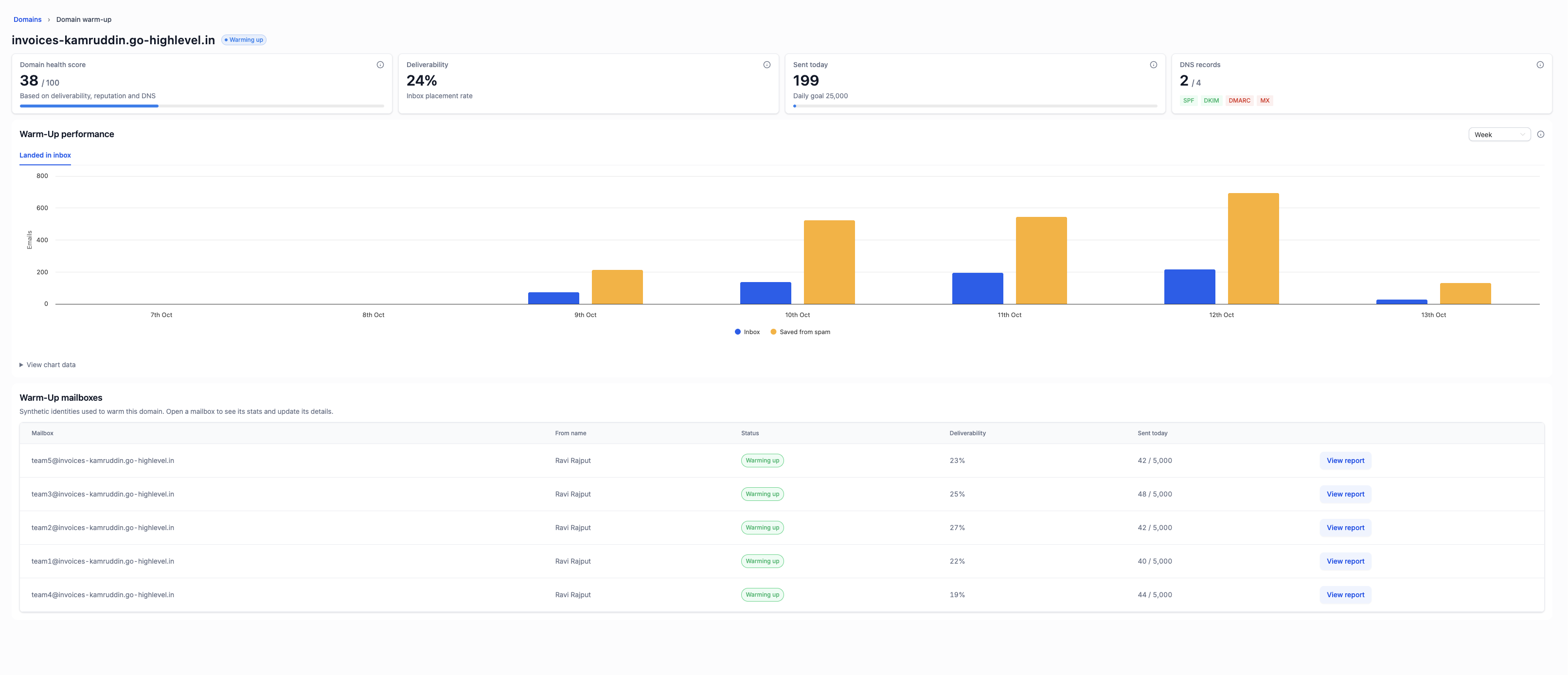 Mailbox ReportDrill into a single warm-up mailbox
To change a warm-up mailbox's sender name, click View report next to the mailbox, then select Update mailbox. Currently, only the sender name can be edited. Additional mailbox configuration options are planned for a future release.
 6
Understanding Your Warm-Up Performance
Warm-up reports help you monitor how your dedicated domain is performing and identify issues that may affect email deliverability. Reviewing these metrics regularly helps you understand whether warm-up activity is improving inbox placement and whether your domain authentication is configured correctly.
- Domain Health Score: A score from 0–100 based on deliverability, sender reputation, and DNS configuration.
- Deliverability: The percentage of warm-up emails placed in recipients' inboxes.
- Sent Today: The number of warm-up emails sent today compared with the selected daily warm-up goal.
- Saved from Spam: Warm-up emails that were moved out of spam folders as part of automated engagement.
- DNS Records: The configuration status of SPF, DKIM, DMARC, and MX records. Missing or invalid records can negatively affect domain health and deliverability.
Warm-up results may take one or two days to appear after activation. A newly activated domain showing zero emails sent or no deliverability data does not necessarily indicate a problem.
7How to Pause or Stop Domain Warm-Up
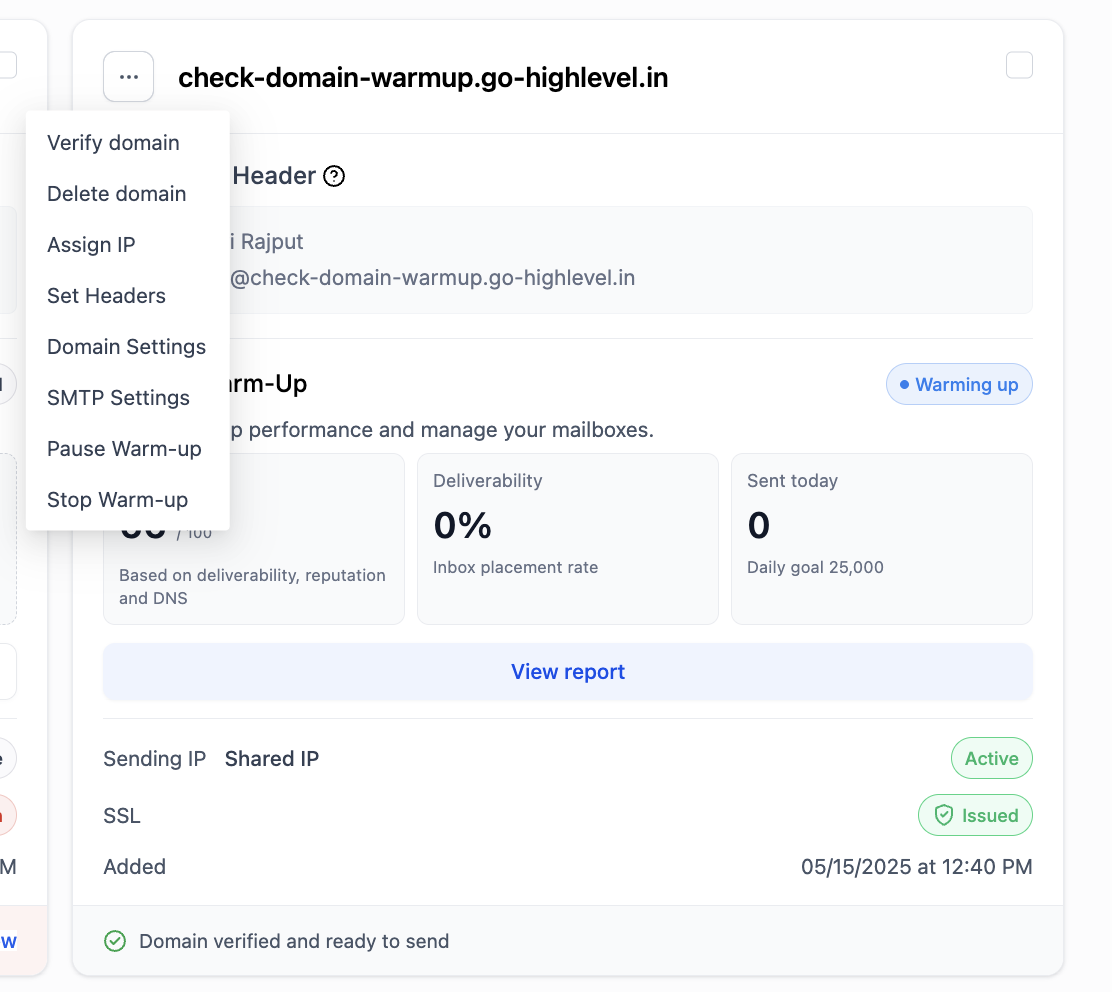
- Click the three dots (…) on the domain card.
- Select Pause warm-up or Stop warm-up.
 Note
Use Pause for a temporary break and Stop when you want to end warm-up for the domain. Stopping early can slow down reputation building, especially on newer domains.
8