
Routines in Managed Agents automate recurring tasks using simple instructions in chat. Schedule activities such as daily pipeline summaries, lead monitoring, or website checks, and receive updates directly in the same conversation. Routines can also use Computer to perform approved website actions automatically.
TABLE OF CONTENTS
- What Are Routines in Managed Agents?
- How to Create and Manage Routines
- Key Benefits of Routines
- How Routines Work
- Computer Permissions and Approvals
- Frequently Asked Questions
- Related Articles
What Are Routines in Managed Agents?
Routines are scheduled tasks that Managed Agents perform automatically without requiring you to manually start each run. Each routine is connected to the conversation where it was created, keeping scheduled updates, follow-up questions, and results together.
For example, you can ask an agent to review your sales pipeline every morning and identify opportunities that need attention.
How to Create and Manage Routines
Creating a routine requires a published Managed Agent and a description of the recurring task. Once configured, you can monitor results and manage its schedule or permissions from the same workspace.
- Navigate to AI Agents → Agent Studio → Managed Agents.
- Open a published Managed Agent.
- Open an existing conversation or click + New Chat.
- Describe the recurring task and schedule. For example:
"Every weekday at 8 AM, show me new leads from the last 24 hours and deals with no activity for seven days. Recommend the next step for each deal." - Send the message and review the routine's schedule.
- If the routine uses Computer, observe the first execution and approve the website actions you're comfortable allowing.
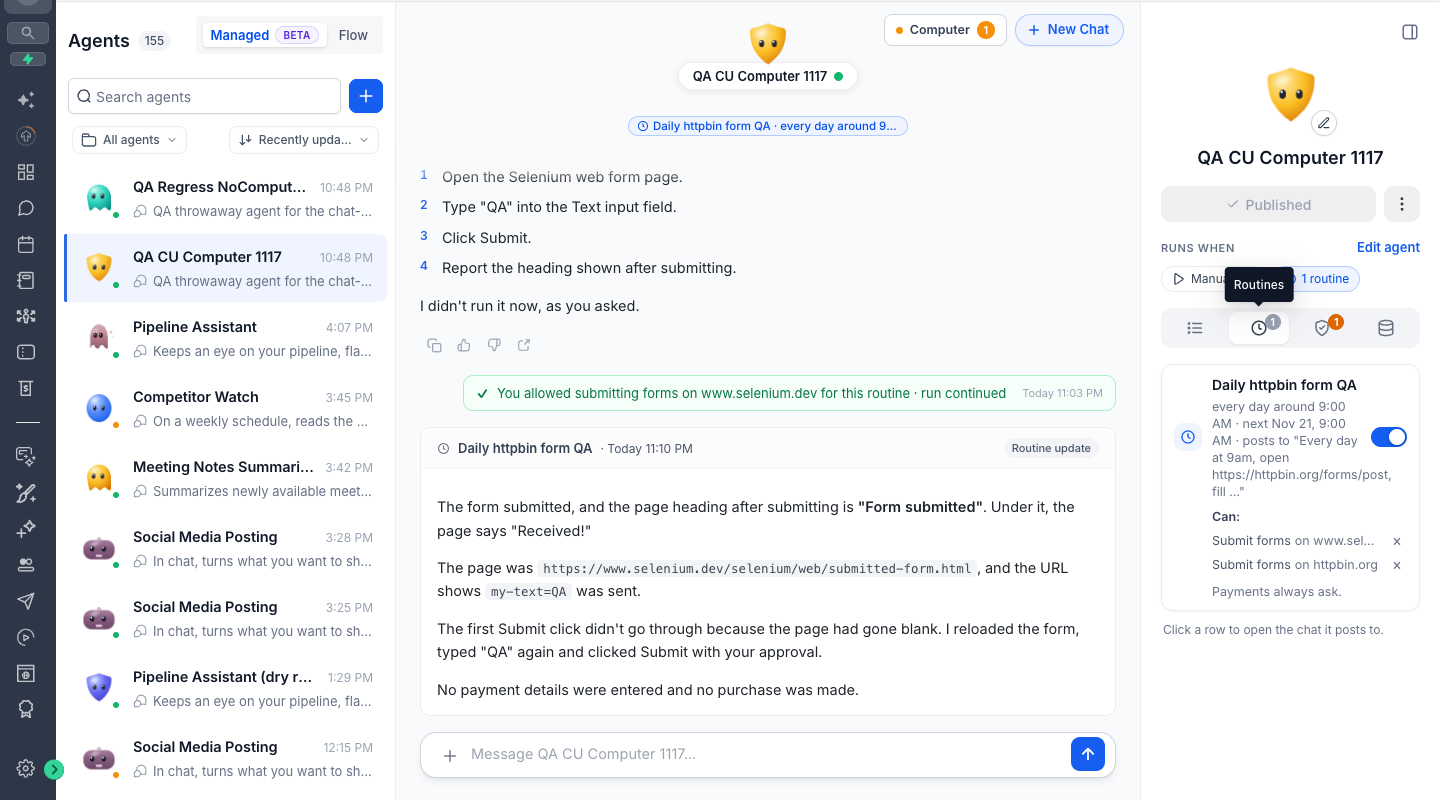
- Open the Routines tab (clock icon) in the right-hand panel to review the routine.
From the Routines tab, you can:
- Review scheduled routines and their execution times.
- Pause or resume routines.
- Open the associated conversations.
- Review or remove saved Computer permissions.
Key Benefits of Routines
Routines reduce repetitive work while keeping you informed and in control of automated activities.
- Automated Tasks: Schedule recurring reports, monitoring, and other activities without configuring triggers manually.
- Conversation-Based Updates: Receive results in the original chat, including short updates when nothing has changed.
- Unattended Computer Tasks: Allow agents to complete approved website actions on a recurring schedule.
- Centralized Management: Review, pause, resume, and manage routine permissions from one location.
How Routines Work
Routines use natural-language instructions to determine what an agent should do and when it should run. Once created, the routine follows its schedule and posts results into the associated conversation.
Key details include:
- Scheduling: Routines run at most once per hour.
- Routine Limits: Each user can have up to 10 active routines per agent.
- Published Version: Routines use the agent's published configuration.
- Chat Updates: Scheduled results appear in the original conversation, with indicators for unseen updates.
Routines differ from traditional Scheduled Triggers because they are created directly in chat and deliver results to that conversation.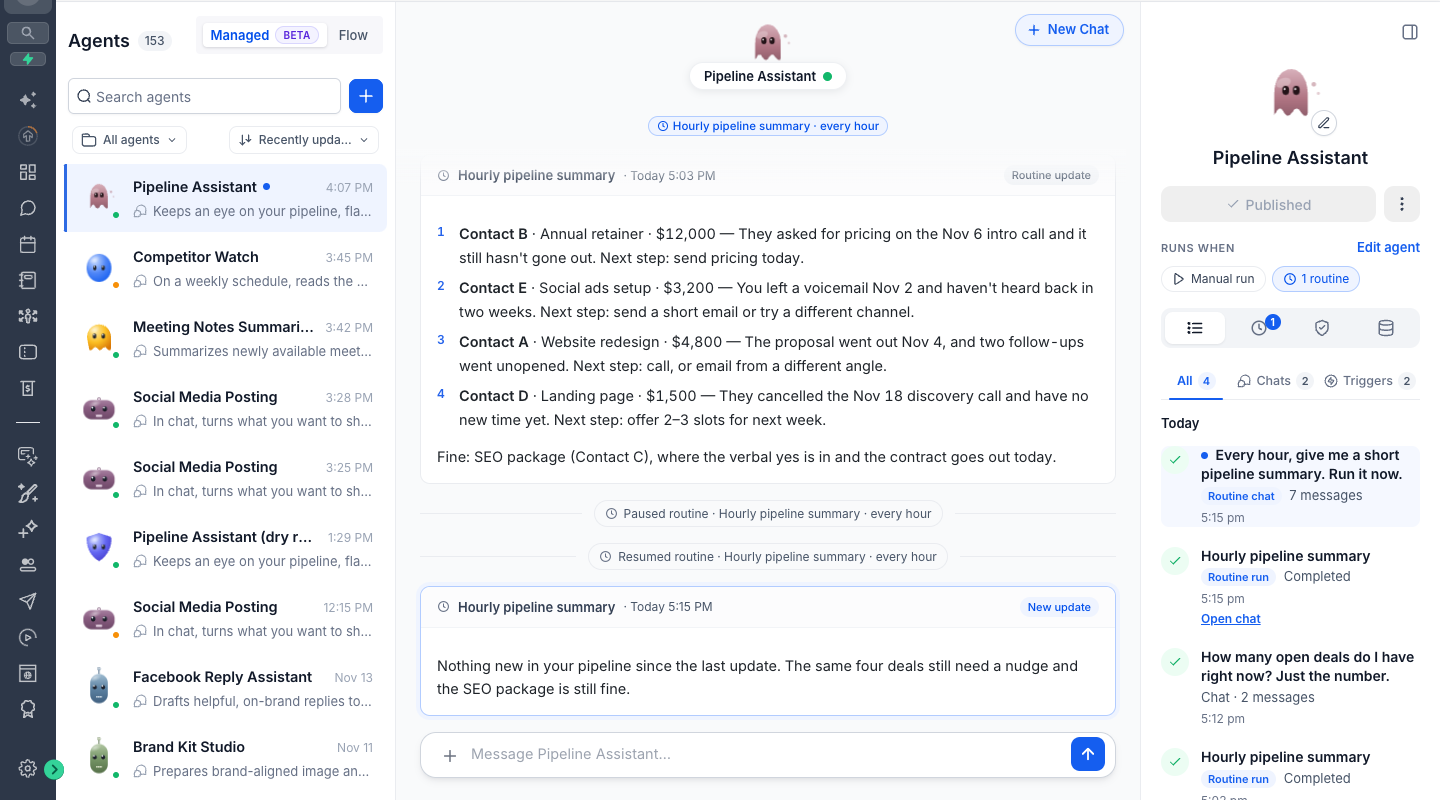
Computer Permissions and Approvals
Computer-enabled routines can interact with websites on a recurring schedule. The first execution happens live in the chat, allowing you to observe the agent's actions and approve required permissions before subsequent unattended runs.
When an action requires approval, you can:
- Deny: Decline the action.
- Allow once: Approve the action for the current execution only.
- Allow for this routine: Save permission for that specific website and action so future runs of the same routine can repeat it.
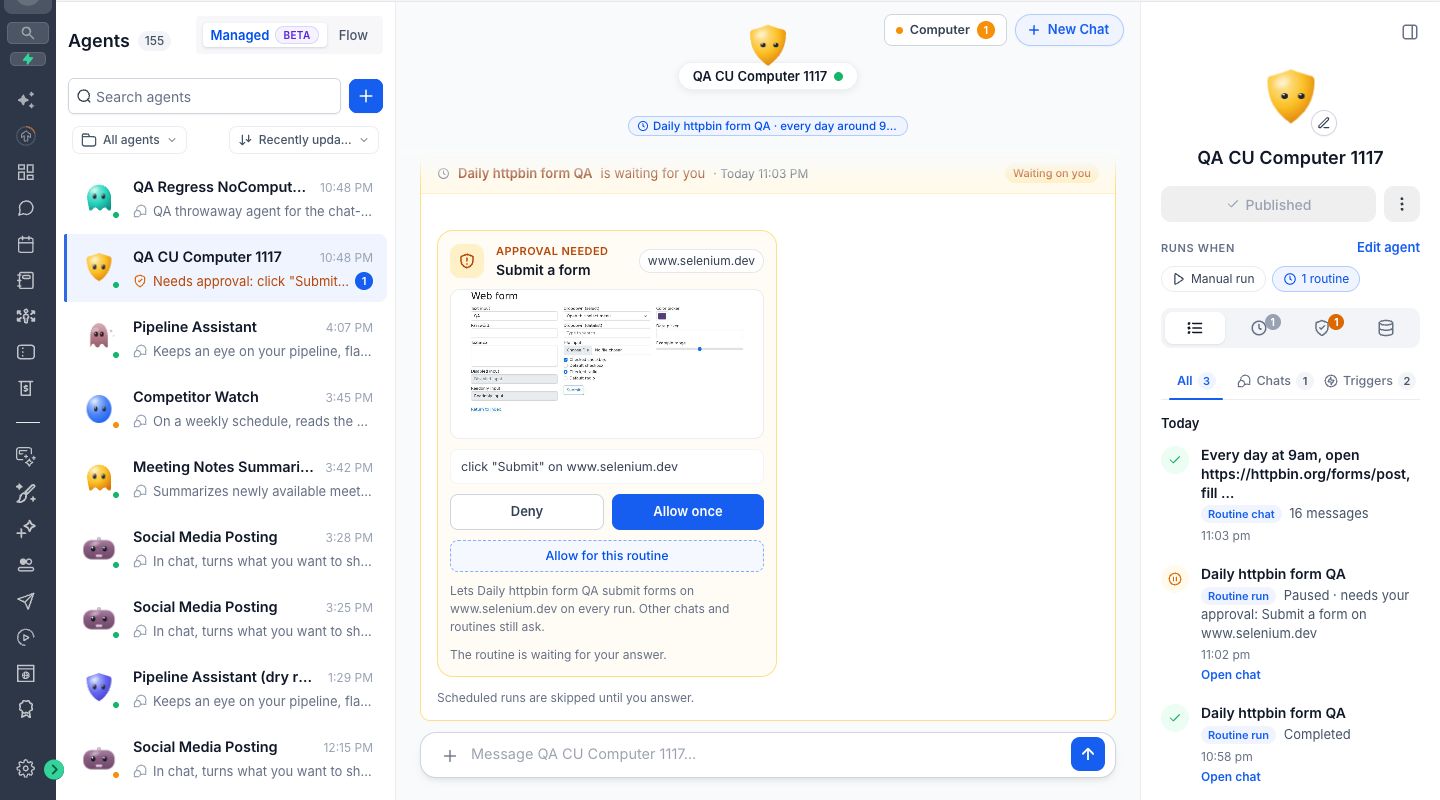
Saved permissions apply only to the routine where they were granted. They do not transfer to other routines or conversations.
If a scheduled execution needs additional permission:
- The run pauses and posts an approval card in the associated chat.
- Subsequent scheduled runs are skipped while the approval is pending.
- An approved action can resume the waiting run.
- Unanswered approval requests expire after 24 hours.
Important: Payments always require explicit approval and cannot be permanently authorized for a routine. Removing an existing permission requires the agent to request approval again the next time that action is needed.
Frequently Asked Questions
Q: Why did my routine stop running?
A routine automatically pauses after three consecutive failed executions. It also stops if its associated chat is deleted, the agent is unpublished, or its creator loses access. Pending approvals can also cause scheduled runs to be skipped.
Q: Can teammates view or approve my routine's actions?
Only the person who created the routine receives its updates and can respond to approval requests. Other teammates may see read-only routine cards.
Q: What happens to saved Computer permissions if I delete a routine?
Deleting a routine removes its saved Computer permissions. These permissions do not transfer to other routines or conversations.
Q: Will I receive email notifications for routine updates?
Email notifications are planned for a future release. Currently, routine updates appear in the associated chat.